
Enabling linked Group blocks in WordPress
I enjoy building block extensions in WordPress. They're often simpler to create than custom blocks because they leverage the existing functionality of core blocks. You only need to add the specific features you want, and I've created several of these plugins.
Recently, I needed a solution for creating linked "cards"—essentially a Group block where the entire block is clickable.
Damon Cook recently wrote an article on the WordPress Developer Blog about creating cards using block styles. It's a great read, but that method didn't quite meet my requirements.
I wanted to create a block extension that:
- Adds a link control to the toolbar of each Group block
- Allows the user to choose a specific link or dynamically use the current post's permalink
- Ensures additional links within the Group are still clickable
- Is accessible
- Adds the necessary classes so themes can style linked Group blocks as needed (the plugin should not apply its own styling)
Here's what the final result looks like. You can try out the Enable Linked Groups plugin on GitHub and test it directly using the Playground demo below.
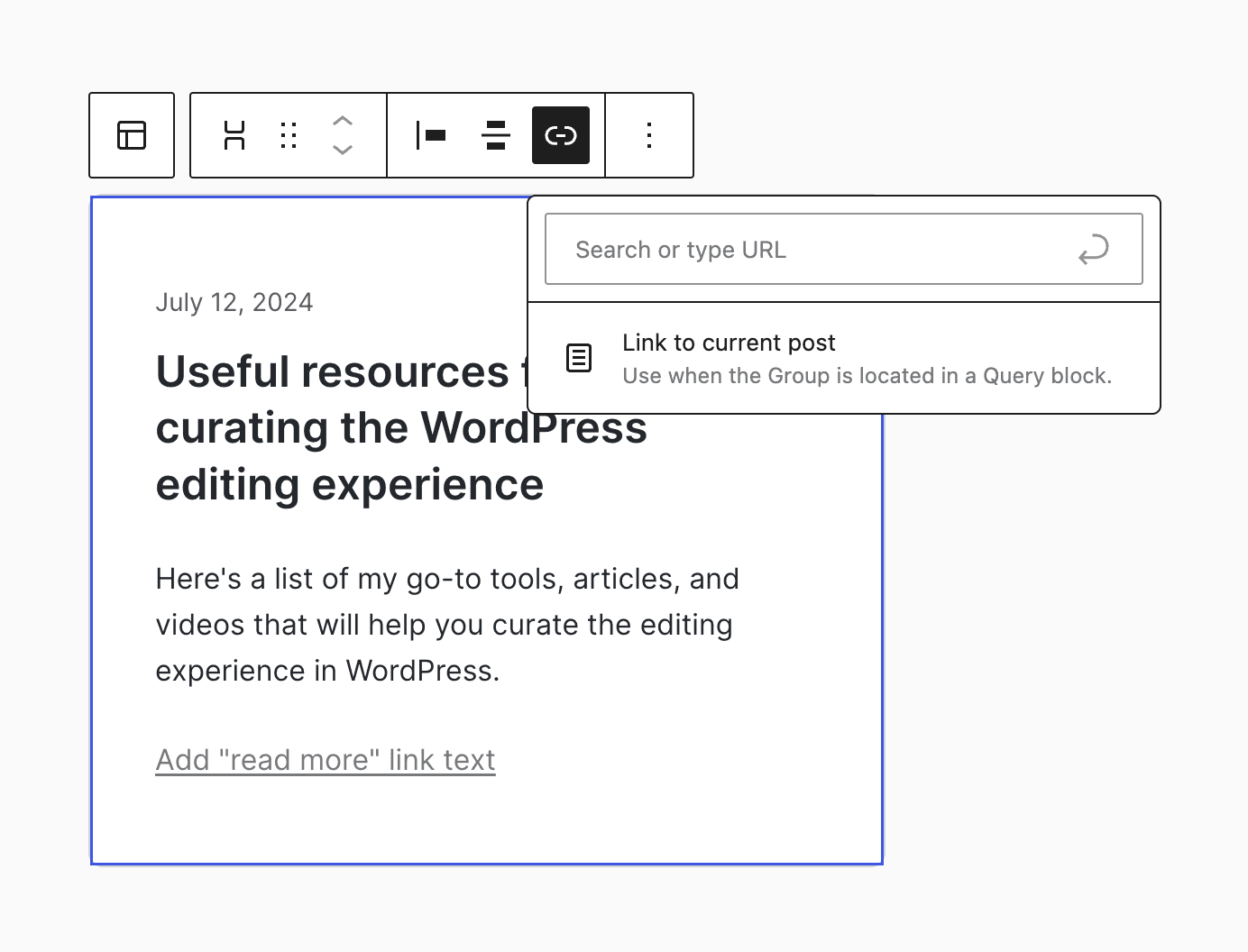
The Editor
The Editor implementation followed a well-established process:
- Register custom block attributes using the
blocks.registerBlockTypefilter. - Add UI elements to the block using the
editor.BlockEditfilter. - Optionally, add Editor-specific properties to the block using the
editor.BlockListBlockfilter.
If you are unfamiliar with this approach, check out How to extend a WordPress block on the WordPress Developer Blog.
The most interesting part of this build was the custom link control in the block toolbar. My goal was to roughly emulate the Image block implementation.
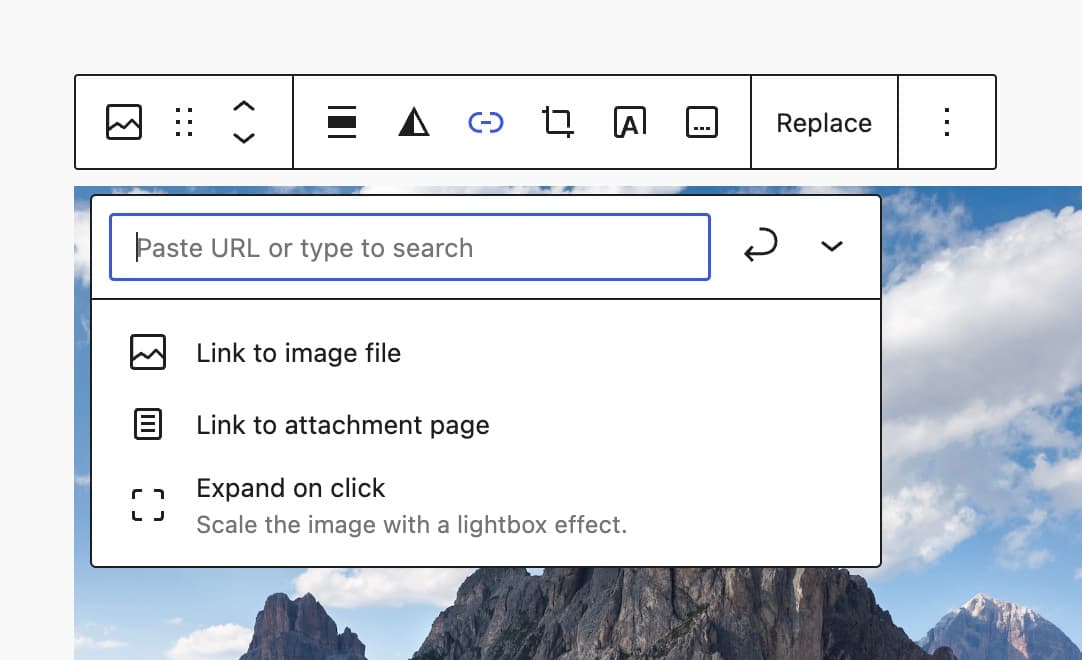
The link control in the Image block is quite complicated, so I chose to build my own version using the experimental LinkControl component coupled with a ToolbarButton, Popover, and MenuGroup (code).
I always recommend using core WordPress components whenever possible. Building your custom UI becomes more about combining pieces like LEGO pieces rather than building everything from scratch.
Here's how the custom control looks in action:
Overall, I'm quite pleased with the result. It feels like you are using Core functionality, rather than an extension. Note that there is no way for users to set the link target or rel when choosing the Link to current post option. This functionality, and a bit more polish, will be added in a future update.
The front end
I was the most concerned with accessibility on the front end, as this is not my area of expertise. After reading a few articles, notably this one on CSS Tricks and the resources listed at the end of that post, I decided on an approach similar to the one Apple uses on its homepage.
When a link is added to a Group block, the class is-linked is added to the block wrapper. Then, the chosen link is inserted dynamically as the first element of the block using the render_block_core/group filter. This was accomplished using a mix of regex and the HTML API (code).
Here's an example of the front-end markup. You can see the link element with the class wp-block-group__link on line two.
<div class="wp-block-group is-linked">
  <a
    class="wp-block-group__link"
    href="https://wordpress.org"
    target="_self"
    rel="follow"
    aria-hidden="true"
    tabindex="-1"
  >
  </a>
  <h2>Linked Group</h2>
  <p>
    Lorem ipsum dolor sit amet, consectetur adipiscing elit. Sed do eiusmod
    tempor incididunt ut labore et dolore magna aliqua.
  </p>
  <div class="wp-block-buttons">
    <div class="wp-block-button">
      <a
        class="wp-block-button__link"
        href="https://github.com/ndiego/enable-linked-groups"
        >Call to action</a
      >
    </div>
  </div>
</div>The wp-block-group__link element is positioned as an overlay, making the entire Group block clickable as a single link. However, internal links and buttons within the Group block remain functional and can still be clicked.
Because this link element is hidden from screen readers and isn't tabbable, it's important to include visible internal links, such as a linked page title or a main call to action, within the Group block.
One downside of this approach is that the text inside the linked Group block cannot be easily selected. While there are JavaScript solutions to address this, I've chosen to keep it simple and avoid using any front-end scripts for now.
If you look at the code, you will also notice that the plugin does not provide any styles to the Group itself. This is intentional and one of the criteria I had when building the extension. The addition of the is-linked class allows themes to style linked groups as needed.
If you have suggestions on improving this extension, please reach out at @nickmdiego or consider creating a pull request in the GitHub repository.